If you publish product photos, guides, or regular blog updates, those descriptions can become a job of their own. This alternative text generator keeps the work in your WordPress dashboard, so you can spend less time moving between tools and more time checking the details that matter to your readers.
Explore AI Alt Text Generator for WP PowerSuite
How the AI image alt text generator works
An image alt text generator uses vision models to interpret image content and produce a written description. WP PowerSuite connects your WordPress images to a supported AI provider, applies your writing instructions, and brings the generated text back into your dashboard.
You can use AI to generate alt text for one image, a selected batch, or new uploads. The plugin also offers product and SEO context to help guide the result. Instead of copying descriptions between a separate AI tool and WordPress, you can generate, edit, and save them where you manage your content.
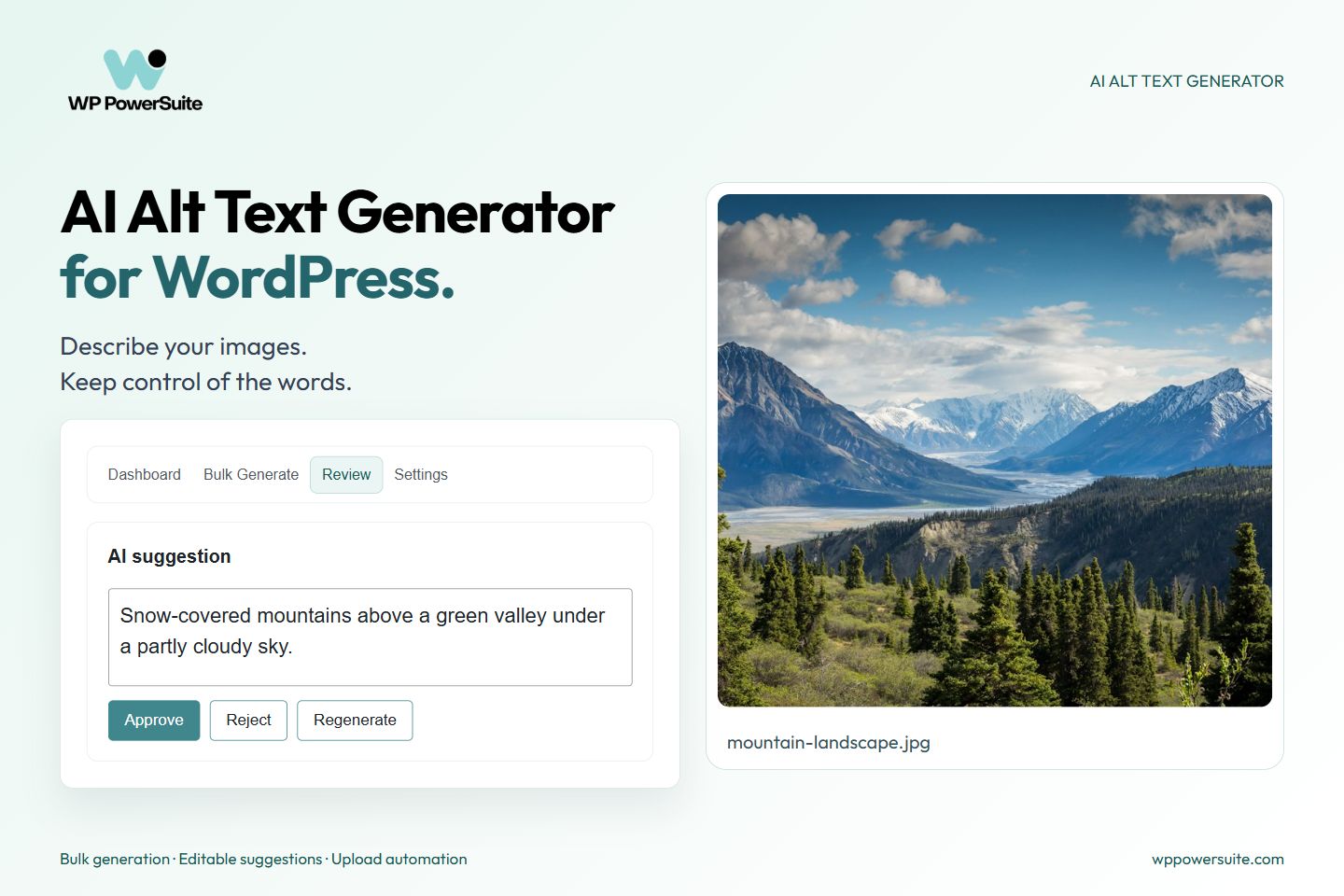
AI models can identify visible objects and details, but they may miss the purpose of an image on a particular webpage. That is why the review queue matters. It gives you a place to check the suggestion against the image and its surrounding content before approving it.
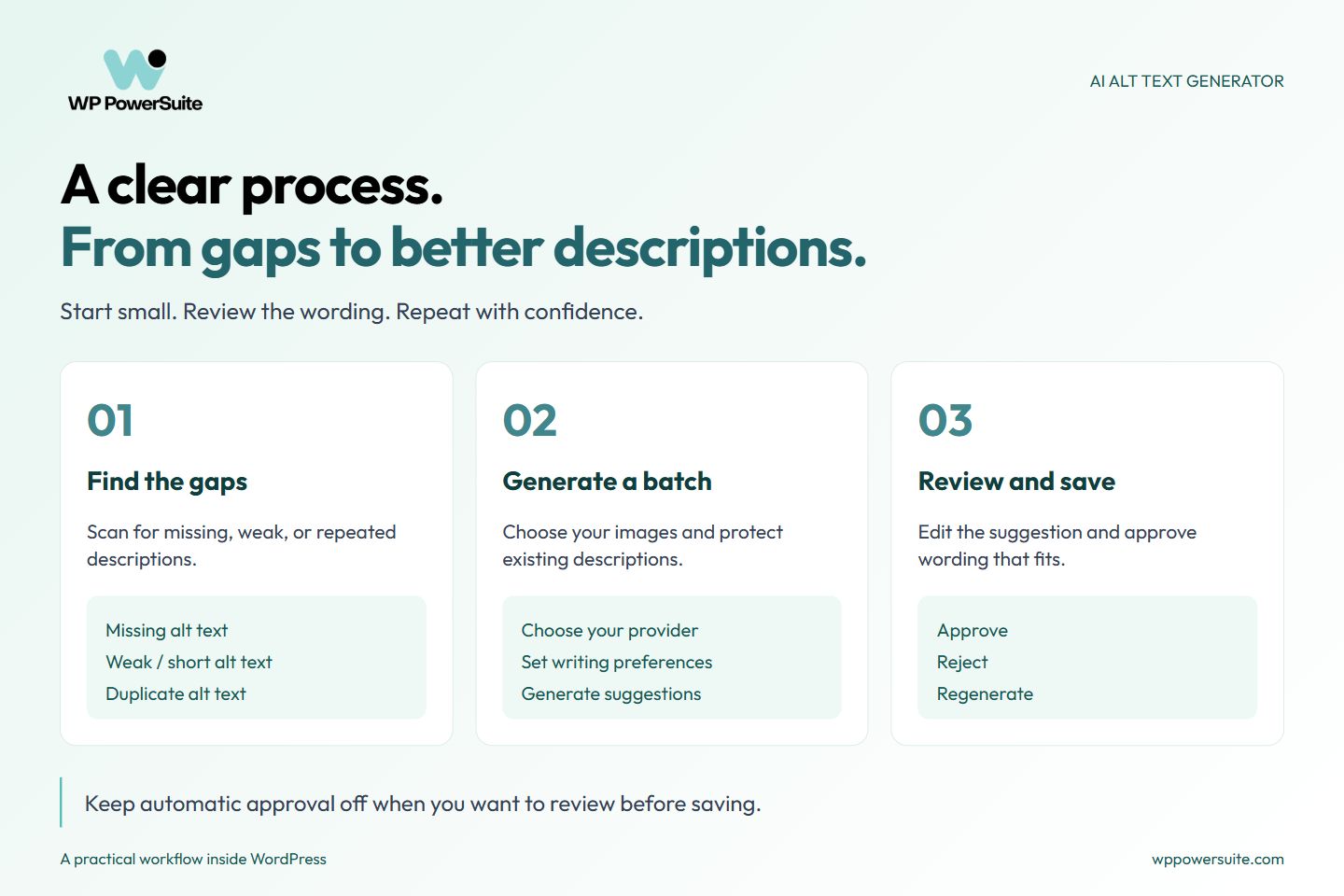
Find the gaps, generate a focused batch, and review the wording before saving.
Find missing alt text before you start
Where should you begin if your library contains hundreds of images? Start with the dashboard. It shows missing descriptions, weak or short alt text, and images that already have descriptions. You can focus on gaps without treating every image as a new task.
The duplicate view identifies groups of images sharing the same wording. That is useful when several product views have inherited one generic description. You can open those images in the Media Library or regenerate the duplicate descriptions, then check that each result reflects its own image.
Full content scanning extends the check to supported image references in posts, pages, blocks, and Elementor content. This helps you investigate descriptions used in published content as well as the attachment records in your library.
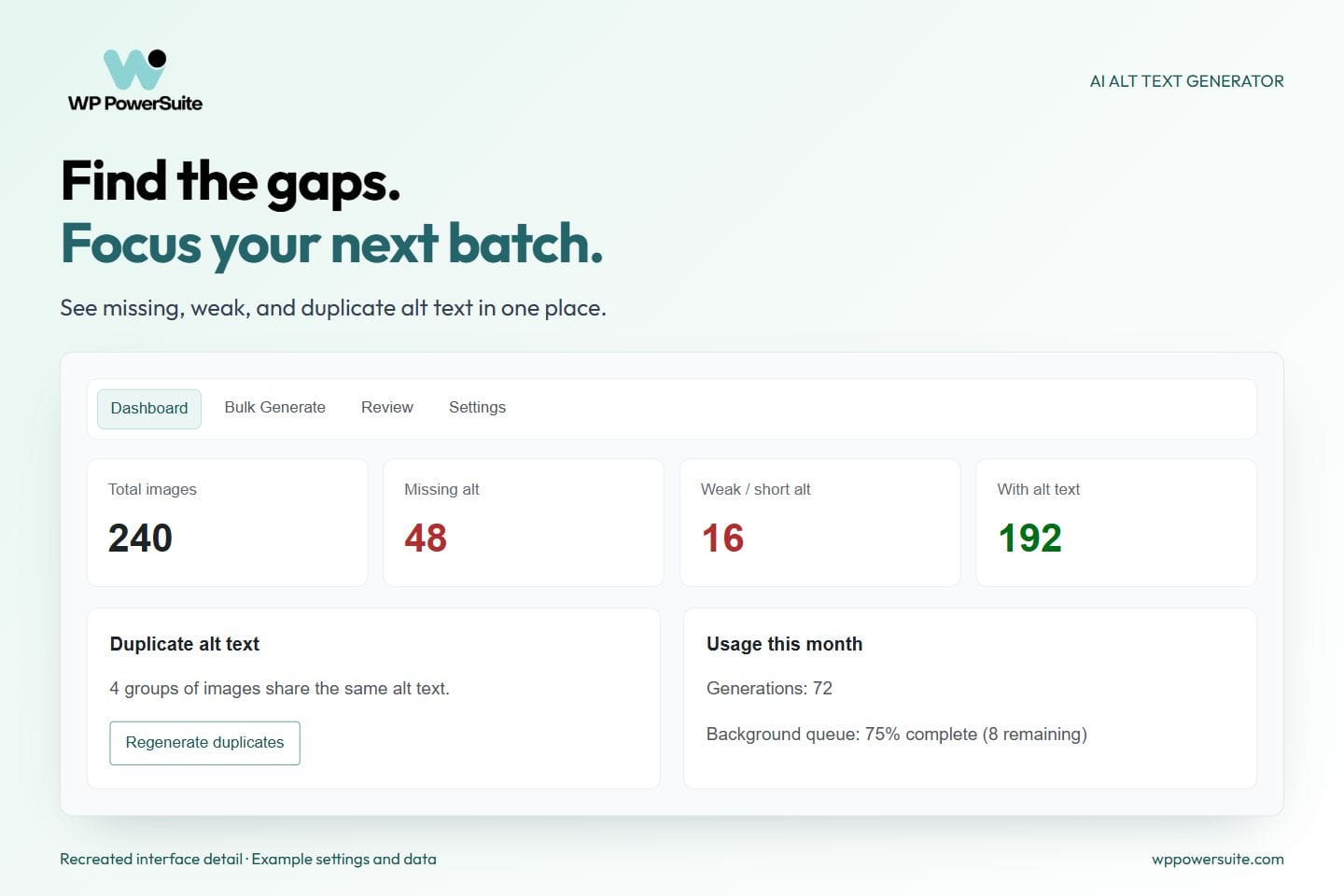
Spot missing, weak, and duplicate descriptions before choosing your next batch.
Generate alt text for images in bulk on WordPress websites and stores
Bulk generation turns a long list of attachments into a manageable batch. Choose the images you want to process, start the run, and follow the results from one screen.
Leave overwrite disabled to preserve descriptions you have already written. Use the attached image filter to focus on images connected to posts or pages, or skip previously processed items to avoid repeating work. For a store, you can narrow the run to WooCommerce product images.
Start with a small selection that represents your site. A product photo, a blog image, and an instructional screenshot can quickly show whether your chosen model and prompt produce useful descriptions. Once the results fit your needs, continue with a larger batch.
The interactive Bulk Generate tab shows processed, skipped, and failed items. Keep it open until the run finishes, and use the retry option for failed images after resolving the cause.
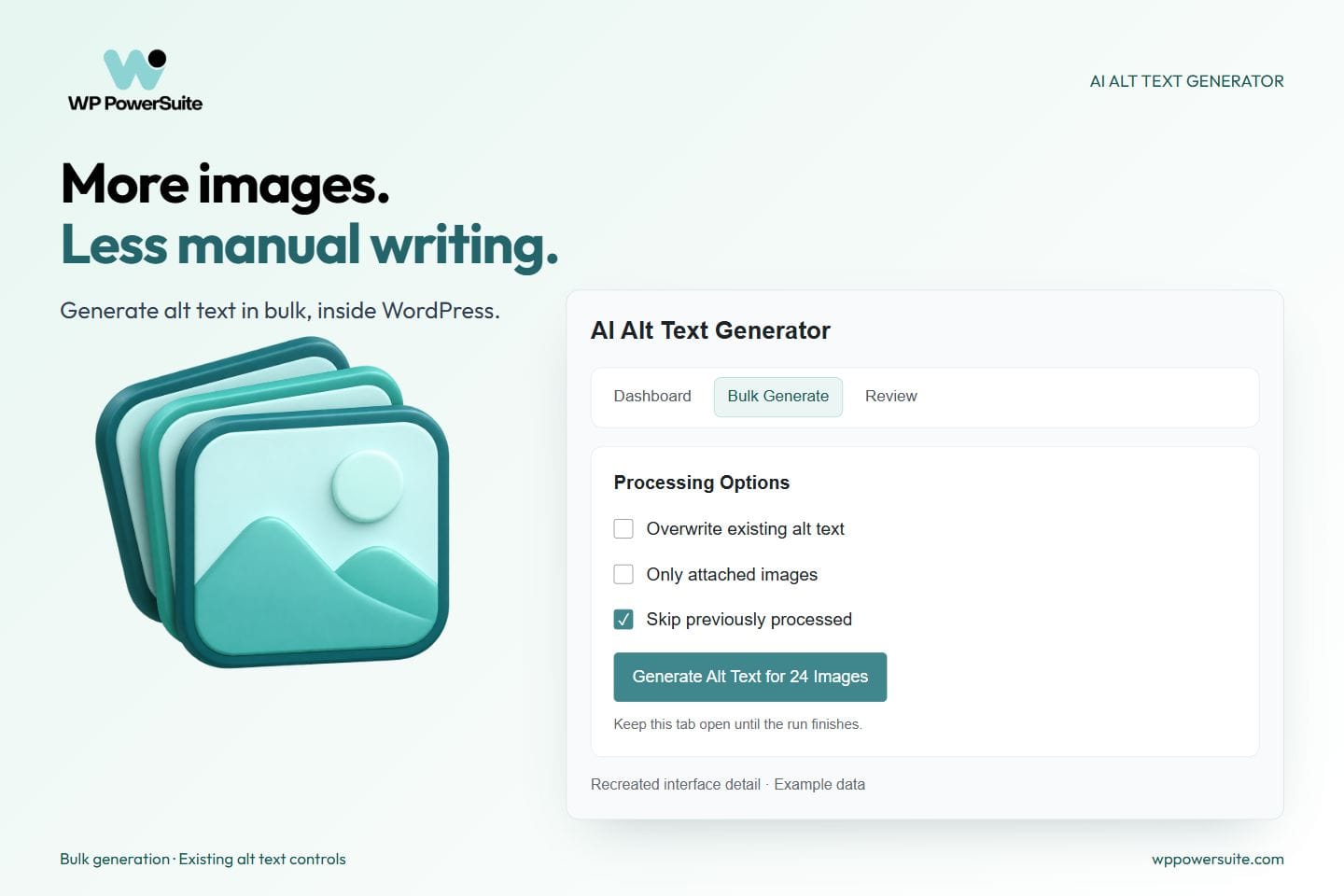
Choose which images to process and protect descriptions you have already written.
A full image library. A clearer place to start.
Find missing descriptions, choose a small batch, and review the results before expanding to the rest of your library.
Explore AI Alt Text GeneratorHow accurate is AI generated alt text, and when should you edit it?
AI generated alt text needs review whenever an incorrect detail could mislead your reader. Models can misidentify objects, colors, or small text, and no single accuracy percentage applies to every image. Compare each suggestion with the image and its purpose on the page. WP PowerSuite places suggestions in an editable review queue when automatic approval is turned off. Read the proposed description, make your changes, and approve the version you want to save.
If a suggestion misses the subject or includes an incorrect detail, reject it or generate another draft. You can handle individual images or use the available bulk review actions to work through a queue.
For example, a gallery may show the same chair from the front, from the side, and in a close view of its fabric. Repeating the product name for all three images misses the differences. Reviewing the generated descriptions lets you make each view useful to the reader.
Prefer to save results automatically for a familiar type of content? Enable Apply without review. Keep that choice deliberate, especially when images include technical details or product variations.
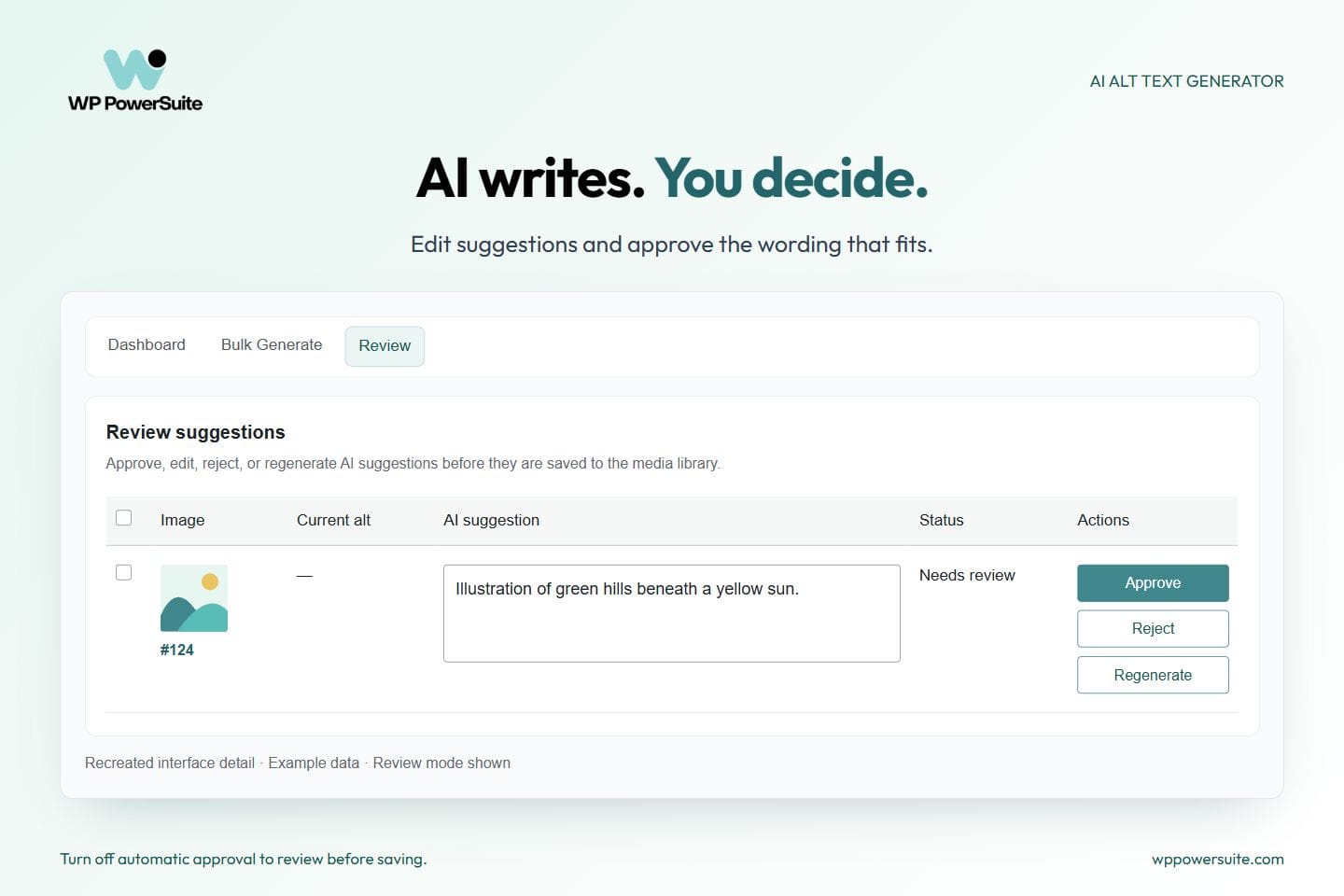
Review the wording, make corrections, and approve each description before saving.
Customize your AI image alt text generator: language, length, style, and keywords
Connect OpenAI, Gemini, or Claude and choose an available model for that provider. Then set the language, writing style, and character limit that suit your content. You can adjust these preferences before running a batch.
Choose a preset based on the kind of content you publish:
- Concise or detailed: Adjust how much visual information the description includes.
- Accessibility focused: Emphasize the meaning and information the image communicates.
- Ecommerce or brand voice: Guide descriptions for product catalogs and branded content.
- Technical: Provide a starting point for interface screenshots and documentation.
If you have specific requirements, add a custom prompt. An instruction such as “Describe the visible product and its distinguishing details in plain language” gives the model a clear direction. A separate rewrite prompt can refine the generated text through an additional AI pass using your selected provider.
Optional prefixes and suffixes help standardize descriptions where appropriate. You can also copy the generated wording into the image title, caption, or description. These are separate fields, so enable copying only when the same text serves each purpose.
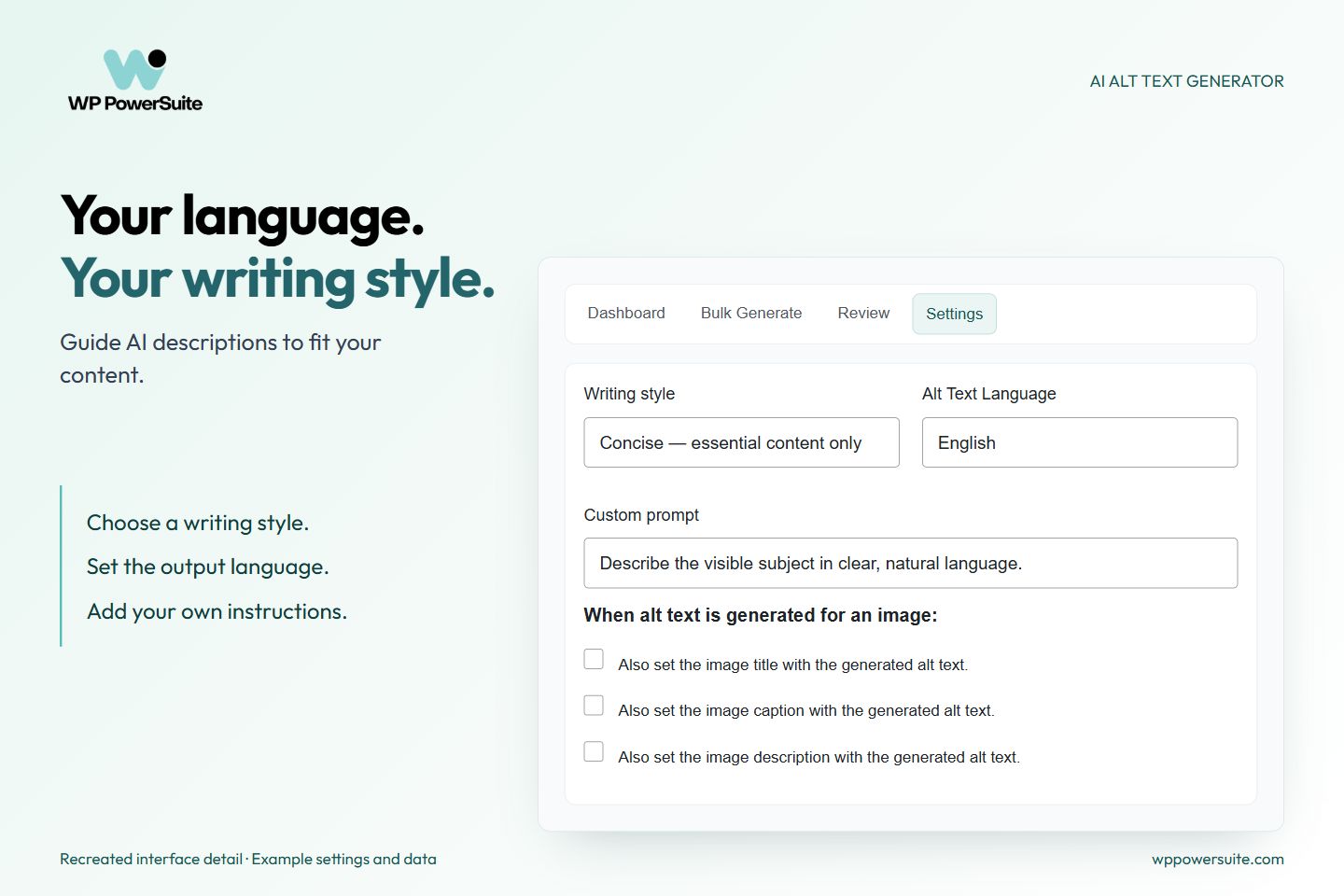
Set the language, writing style, and instructions that fit your content.
Automatically generate alt text for new uploads
Cleaning up an existing library is only part of the job. New images keep arriving. Enable Auto-generate on upload to process new images automatically after they are added to WordPress.
The upload finishes first, then alt text generation runs in the background. You can send suggestions to review or apply them directly, depending on your approval settings. Existing descriptions can remain protected with overwrite turned off.
The background queue also supports Media Library bulk actions. This is a different workflow from the interactive Bulk Generate tab, which runs in your browser. Choose the approach that fits the way you work, and check the queue or processing results to see what remains.
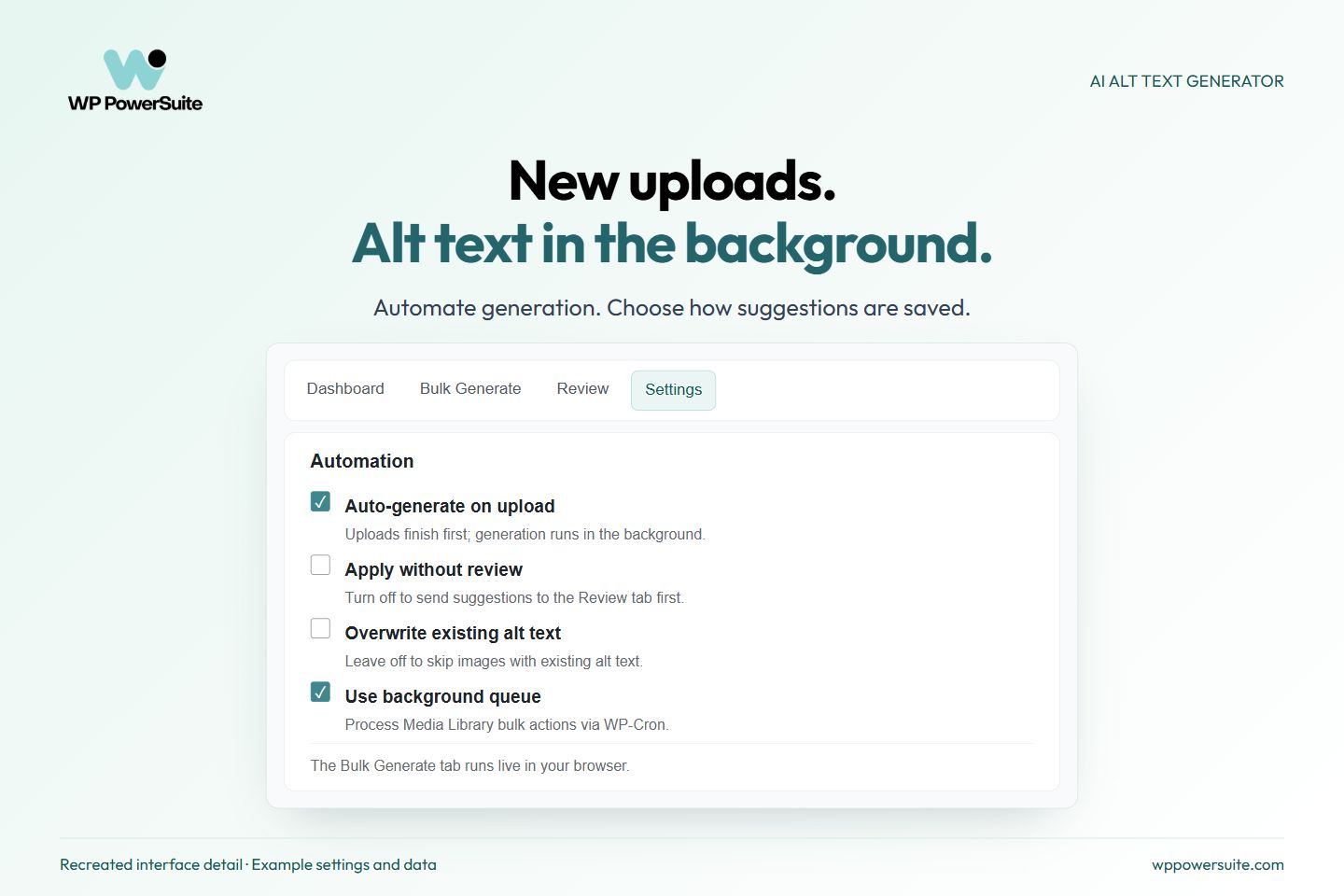
Keep new uploads moving through generation while retaining control over approval.
Write better alt text for WooCommerce product images
Product images often need more context than a general photograph. A useful description may need to distinguish a color, a view, or a visible detail without repeating the entire product listing.
WP PowerSuite can use the product name and available product details to guide generation. If your image titles describe products more clearly, you can use those as the product name source instead.
Process product images in bulk, limit a run to each product’s main image, or generate descriptions for featured and gallery images from the product editing screen. These options let you work through a full catalog or handle one listing while you edit it.
For a blue cup photographed from the side, a useful description might read:
Blue ceramic cup with a curved handle, shown from the side.
That wording describes the view without turning it into a sales pitch. Check materials, colors, and variants against the actual product before approving the description.
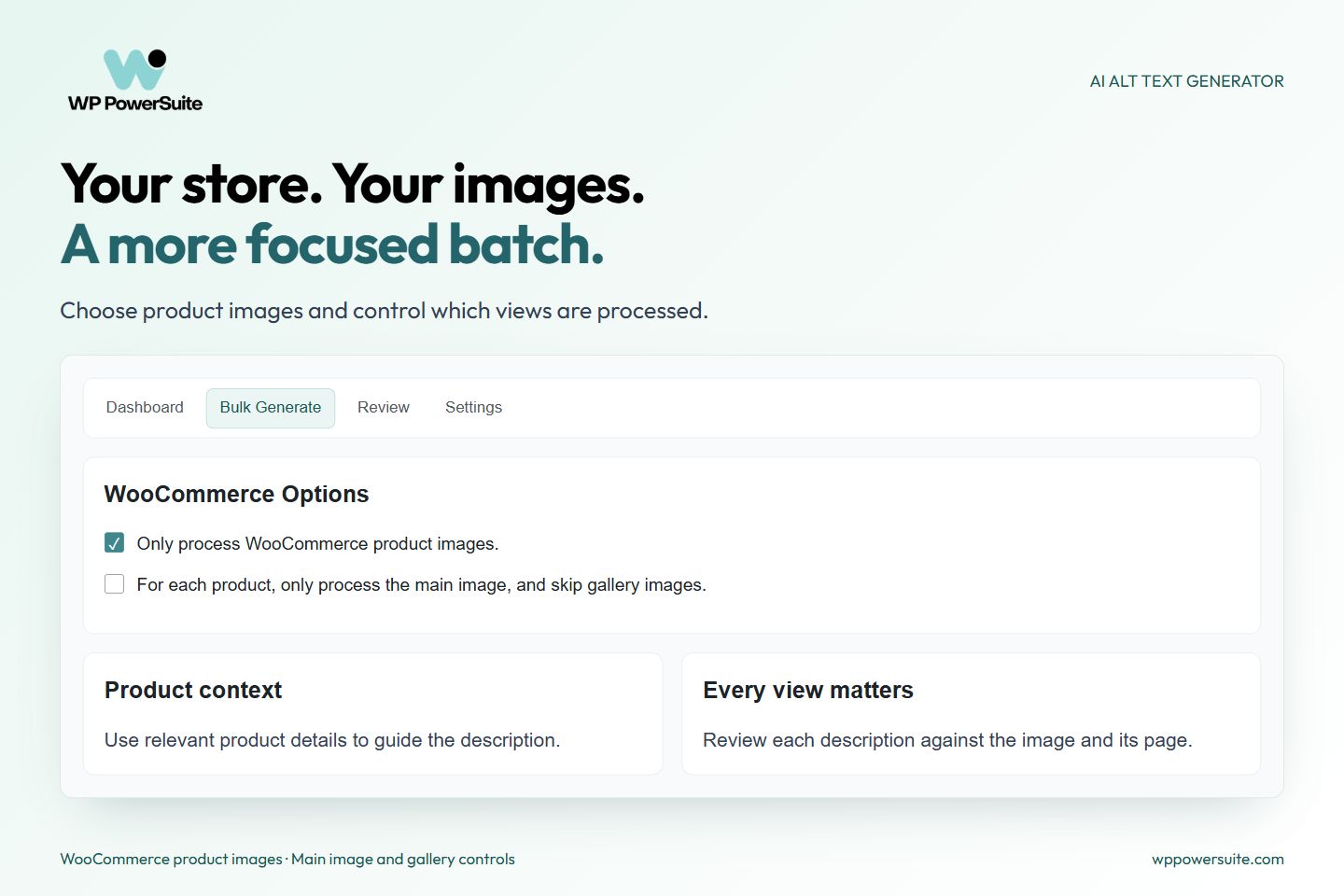
Choose product-only batches and decide whether to include gallery images.
Use the WordPress plugin where you already edit
You do not need to leave your normal editing workflow to work on image descriptions. Generate and manage them from the Media Library or attachment screen. Gutenberg controls support Image, Cover, and Media & Text blocks. Elementor adds generation controls to Image and Image Box widgets.
When descriptions are saved, content synchronization can update supported image references. The Posts and Pages bulk refresh action helps bring saved alt text into existing content, with separate controls for replacing descriptions that are already there.
External image processing and a custom lazy load source attribute are available for additional content setups. If your site uses these options, check a representative page after refreshing it so you know the intended image received the description.
Make image reviews part of your client workflow.
Bring scanning, generation, and approval into the same WordPress toolkit your team uses to manage websites.
See WP PowerSuite plansGuide image SEO without losing the description
Optional SEO keywords and negative keywords give you more control over the wording. You can supply relevant terms and identify phrases you want excluded from the generated descriptions.
The module can also use focus keyphrases from supported SEO plugins, including Yoast SEO, Rank Math, All in One SEO, SEOPress, Squirrly, SmartCrawl, and The SEO Framework. A post title fallback is available when no focus keyphrase is found.
Search engines use alt text to understand images alongside other page information. This makes image descriptions a useful part of content optimization. Keep the image itself at the center of the description. Google’s image SEO guidance recommends useful context and warns against keyword stuffing. Use relevant phrases, then read the result to make sure it still describes the image naturally.
Alternative text for accessibility and SEO
Descriptive alt text helps a screen reader user understand the information an image contributes. Assistive technologies can present that alternative text when the image itself is not accessible to the reader. Clear descriptions support accessibility and user experience together, and can also provide information when images fail to load.
Useful alt text describes the image in context. For web accessibility, that context matters more than filling every field with the same generic wording. A purely decorative image generally needs an empty alt attribute, while an image used as a link or button may need wording that explains its function. The W3C images tutorial explains how these choices relate to the Web Content Accessibility Guidelines, or WCAG.
WP PowerSuite lets you mark decorative attachments so they are excluded from generation. For informative images, its review tools make digital accessibility part of everyday publishing.
Best practices: how to write effective alt text and avoid common mistakes
Write alt text that explains the image’s purpose in plain language. In WP PowerSuite, use the Review tab to check these four points before approving a suggestion:
- Describe the image accurately. Check the subject and visible details before accepting a suggestion.
- Consider its purpose. A product view and a tutorial screenshot need different kinds of information.
- Keep it concise. Remove repetition and details that do not help the reader.
- Avoid keyword stuffing. A clear sentence is more useful than a list of search terms.
This review step helps your team write alt text consistently while keeping control over accuracy and relevance.
Manage larger image libraries and processing rules
WP PowerSuite gives WordPress teams filters, usage controls, and reporting options for handling a growing image library. Choose which attachments are processed before starting generation, then use scan summaries and history to keep track of the remaining work.
Filter by file extension, exclude images attached to selected post types, and skip files that cannot be found on the server. Combine these settings with existing alt text protection and previously processed filters to avoid unnecessary work.
Monitor scans, usage, and results
In WP PowerSuite, configure daily, weekly, or monthly scans and optional email summaries covering missing, weak, duplicate, and pending review items. The dashboard also shows generation totals and estimated costs. A monthly generation limit lets you stop new generations once your chosen threshold is reached.
Generation history and recent errors help you investigate unsuccessful requests. You can set log retention, adjust request timeouts, and tune processing settings to suit your hosting environment.
Review descriptions in CSV and control team access
WP PowerSuite exports image records for review outside WordPress, then import edited descriptions mapped to attachment IDs. This gives teams a way to prepare or review wording in a spreadsheet and return approved text to the correct images.
Within WordPress, set permissions for generating descriptions, viewing the dashboard, and managing settings. Administrator only access is available when you want tighter control. A client safe display option hides token counts and estimated costs.
For managed sites and custom processes, REST API and WP CLI tools support generation, scans, queue management, content synchronization, and other supported operations.
Which AI alt text generator should you choose?
Choose an AI alt text generator based on where you publish, how many images you manage, and how you want to review the output. WP PowerSuite suits WordPress teams that need bulk generation, editable suggestions, WooCommerce context, and controls for existing descriptions in one dashboard.
A separate tool may be enough for an occasional image. For an active WordPress site, the advantage of an integrated module is that you can scan your library, generate descriptions, review them, and refresh supported page content without repeatedly transferring text between applications. The module overview brings these capabilities together.
Choose an alt text generation workflow
Describe an existing collection
Where to work: Bulk Generate tab
Filter the batch and keep the tab open while it runs.
Process selected attachments
Where to work: Media Library bulk actions
Use the background queue when enabled.
Keep up with new images
Where to work: Upload automation
Generate suggestions after uploads finish.
Check wording before saving
Where to work: Review tab
Edit and approve suggestions with automatic approval off.
Update existing page content
Where to work: Posts and Pages bulk refresh
Refresh supported image references using saved descriptions.
How to use the AI alt text generator
- Connect your provider. Enable the module and add your provider’s API key in WP PowerSuite’s AI Connections settings.
- Choose your preferences. Select the model, language, and writing style. Turn off automatic approval if you want to review suggestions first.
- Generate and review. Start with a few representative images, refine the results, and continue when the descriptions fit your content.
Before your first run: Your provider account handles AI usage charges separately from your WP PowerSuite license. Images are processed by your selected provider, so use an account and data handling arrangement appropriate for the material you upload.
AI alt text generator questions
What does WP PowerSuite cost, and are AI charges included?
WP PowerSuite is a commercial plugin, and AI provider usage is billed separately from its license. You connect your own OpenAI, Gemini, or Claude account. The cost of generating descriptions depends on that provider’s current pricing, the model you select, and the work sent for processing.
Check the current WP PowerSuite offer and your provider’s billing terms before buying. Start with a small batch to assess usage, then use the module’s estimated costs and monthly generation limit to manage a larger rollout. Plugin licensing does not provide unlimited provider credits.
How does WP PowerSuite handle image privacy and data security?
WP PowerSuite sends image information to the AI provider you configure so that the provider can generate a description. Processing takes place through your connected OpenAI, Gemini, or Claude account; it is not an entirely local image analysis process. Generation settings can also supply filenames, writing instructions, and relevant product or SEO context.
Only process images you are permitted to share with that provider. For customer documents, unreleased products, or other private material, check the selected provider’s current retention and data use policies before enabling upload automation. The plugin’s role permissions let you control which WordPress users can generate descriptions or manage settings.
Do decorative images need alt text?
Purely decorative images generally need an empty alt attribute rather than a written description. Informative images need wording that conveys their meaning, while linked images may need text describing their destination or action. The W3C images tutorial explains these distinctions.
WP PowerSuite lets you mark decorative attachments so they are skipped during generation. Review every image on your site in its page context before making that choice, particularly if the same attachment appears in different contexts. A missing description and an intentionally empty alt attribute are not always the same problem.
How long should generated alt text be?
WP PowerSuite defaults to a limit of 125 characters, which you can change in its writing settings. That number is a product preference, not a universal accessibility requirement. A simple product view may need only a short sentence; a detailed chart may need an explanation in the surrounding page content.
Choose a limit that leaves room for the information your reader needs. Then check the actual result for clarity rather than judging it by length alone. The W3C guidance bases text alternatives on the purpose and information conveyed by an image.
Make image descriptions part of your publishing routine
Start with the images that matter most to your readers, then build a routine you can maintain. WP PowerSuite brings scanning, bulk generation, editable suggestions, and upload automation into the same WordPress workflow.
Get AI Alt Text Generator with WP PowerSuite and give your team a clearer way to manage alt text from the first upload to the final review.
Ready to give your images better descriptions?
Start with the images that matter most. Keep control of the wording, and build a process your team can repeat.
Get WP PowerSuite