A customer places an order, but the confirmation email never appears. A new member requests a password reset and waits. A promising contact form submission reaches your website, yet nobody on your team sees the notification.
These problems expose three different needs: a dependable way to send email, a record of what happened, and a routine for spotting failures. A WordPress SMTP plugin addresses the sending connection. Logging and reporting make that connection easier to manage.
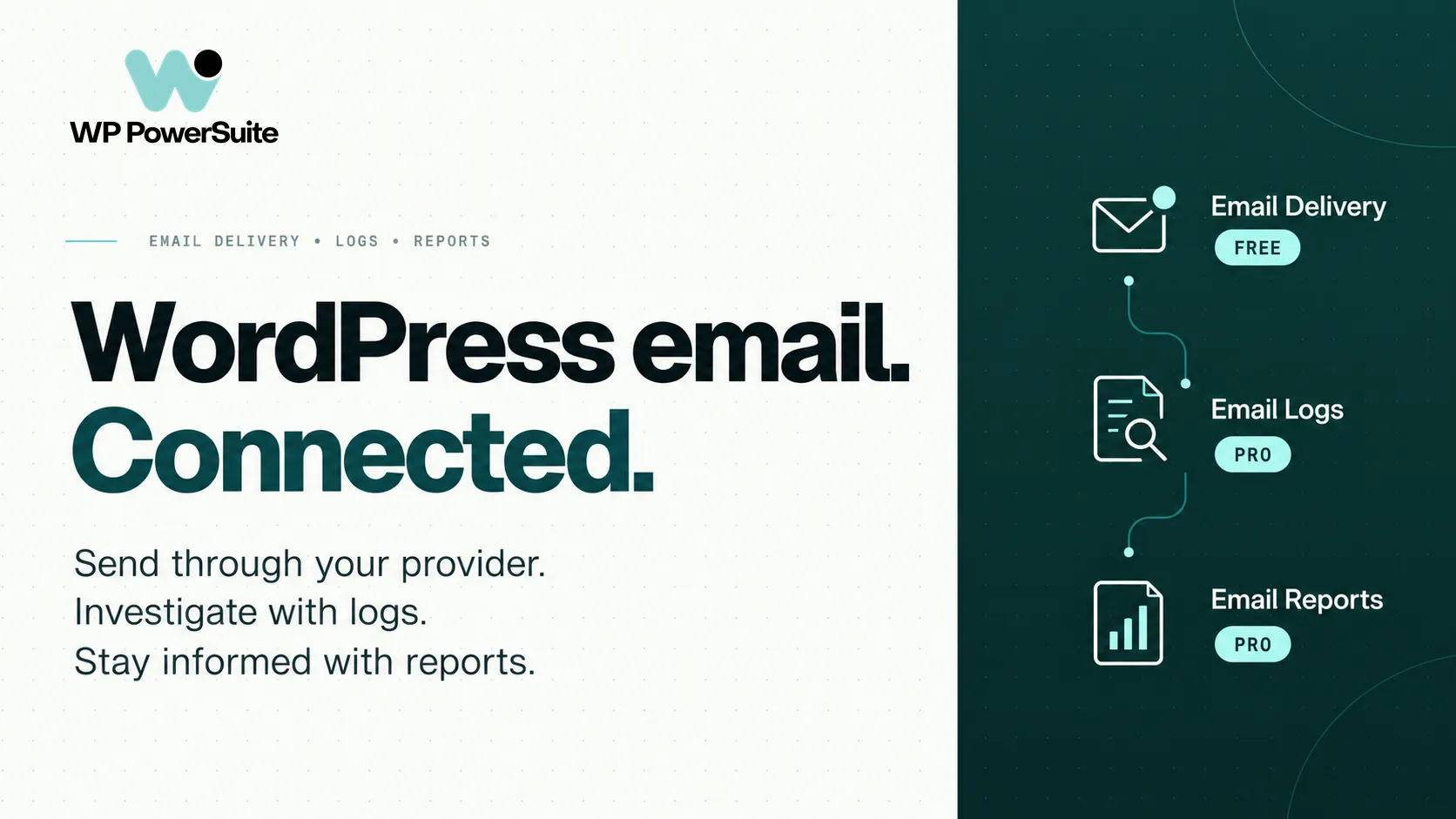
WP PowerSuite brings those jobs together through Email Delivery, Email Logs and Email Reports. Email Delivery connects WordPress to SMTP servers and supported email providers. Email Logs adds searchable message history. Email Reports sends scheduled summaries to the people responsible for the site.
This product-led review explains how the modules work, where they are useful, and what to check before relying on them. It is based on the module implementation and product documentation, rather than a measured inbox-placement benchmark.
ONE TOOLKIT · THREE CONNECTED JOBS
Quick overview: WP PowerSuite email delivery, logs and reports
WP PowerSuite combines three modules for WordPress email management: Email Delivery connects your site to SMTP servers and supported email providers; Email Logs records message history and errors; Email Reports sends scheduled summaries. It is best suited to site owners and agencies who want sending, troubleshooting and reporting within one modular WordPress toolkit.
Email Delivery is free; Email Logs and Email Reports require Pro. Provider accounts, domain authentication and testing are still necessary. Logs and reports help investigate failures, but a “sent” status does not prove inbox delivery, and no module guarantees it. The review below covers setup, retries, recovery and comparisons with WP Mail SMTP and other dedicated SMTP plugins.
| Module | Main job | Practical benefit | Availability |
|---|---|---|---|
| Email Delivery | SMTP and provider connections, sender routing, fallback and diagnostics | Control how WordPress sends outgoing email | Free |
| Email Logs | Message history, errors, delivery events and eligible resends | Investigate missing or failed messages | Pro |
| Email Reports | Scheduled email and website activity summaries | Keep owners and maintenance teams informed | Pro |
Start with your immediate problem. If you need to configure an authenticated sending connection, explore WP PowerSuite Email Delivery. If support visibility and recurring oversight matter too, add the Pro modules as your workflow grows.
Why you need a WordPress SMTP plugin for email delivery
WordPress applications commonly use wp_mail() to create outgoing messages. The sending configuration then determines how those messages leave the server. Problems can occur at several points: an incorrect recipient, invalid credentials, a blocked connection, a provider restriction, or filtering after the sending service accepts the message.
A WordPress SMTP plugin helps you configure an authenticated mail server instead of relying only on the host’s default mail setup. Some solutions also connect directly to a provider through its API. Both approaches give administrators an explicit sending service to configure and troubleshoot.
However, a successful send is not proof that someone received or read an email. The WordPress documentation for wp_mail() specifically distinguishes successful processing from recipient receipt. That is why delivery, logs and reports solve related but separate problems.
For a useful troubleshooting sequence, ask: Did the website generate the message? Did the sending service accept it? Did that service report delivery or rejection? Finally, can the recipient locate it? Jumping directly to “change the SMTP plugin” can miss the actual cause.
WP PowerSuite Email Delivery: an SMTP plugin for WordPress
What is SMTP?
SMTP stands for Simple Mail Transfer Protocol, the standard used to transfer email between mail systems. An SMTP mailer connects your WordPress site to an SMTP service using the account details you supply. Using a WordPress SMTP plugin helps make that connection explicit and manageable.
The default WordPress mail path commonly uses the PHP mail function through PHPMailer. Hosting configurations vary, so the default PHP mail function may work on one server and fail on another. A configured SMTP solution moves sending to your chosen service, while your WordPress plugin continues generating the message.
Choose an SMTP server or a supported email provider
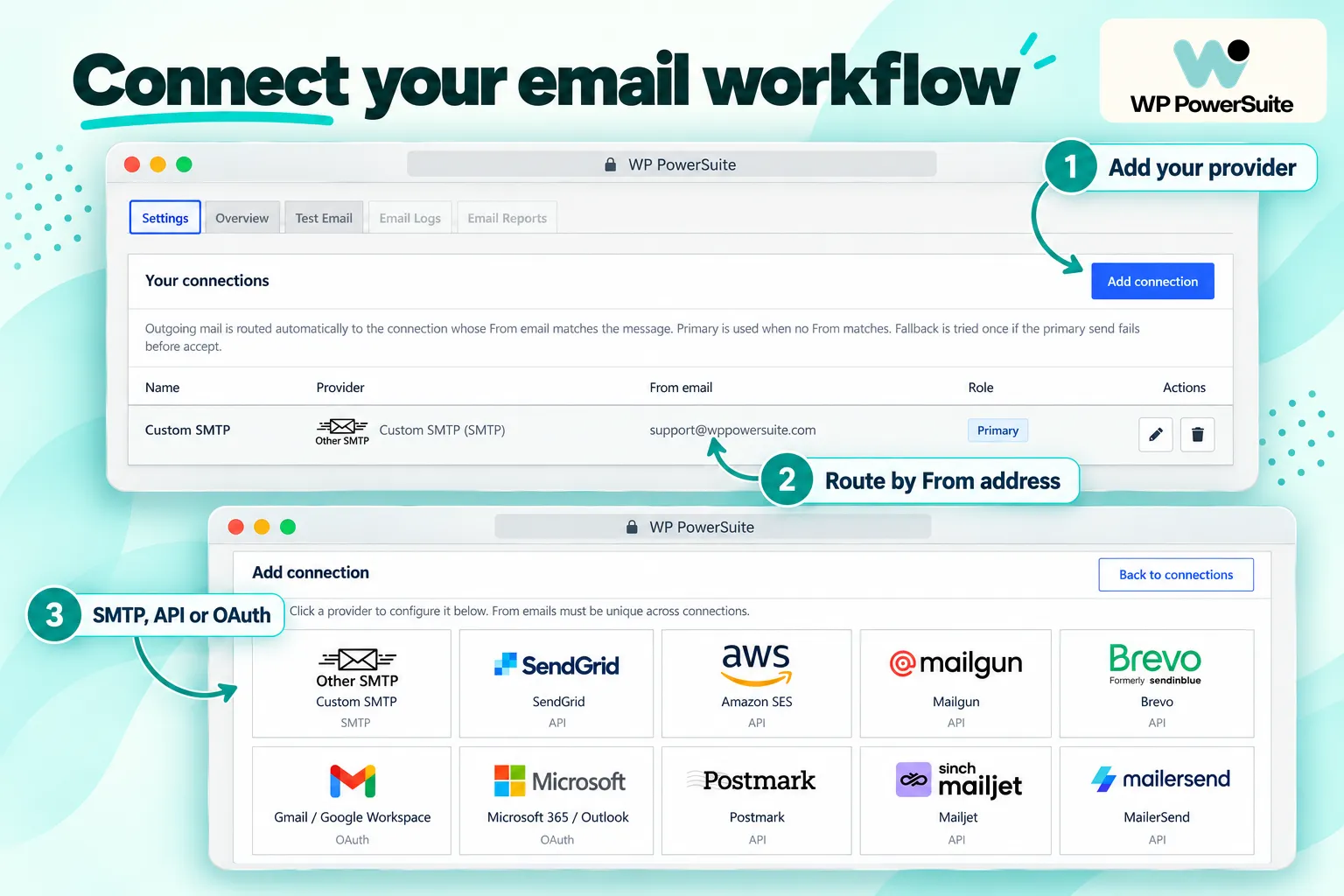
Email Delivery supports a custom SMTP connection and multiple provider integrations. The reviewed implementation includes services such as Amazon SES, SendGrid, Mailgun, Brevo, Postmark, MailerSend, Resend, SMTP2GO and Mailjet, alongside Google Workspace/Gmail and Microsoft 365 and Outlook OAuth integrations.
This gives you flexibility when choosing an email service provider. You can use the service your team already manages, or assess providers according to transactional email volume, domain verification, account restrictions and operational needs. The plugin provides the connection; the SMTP service provider supplies the sending service and its associated quotas or fees. A reliable SMTP provider should also give you useful records when an email fails.
For custom SMTP, expect to enter the server hostname, port, encryption choice and authentication credentials supplied by your provider. For an API integration, use the credentials and sending-domain configuration required by that service. Do not assume instructions for Gmail SMTP password authentication are the same as the Google API connection. Google and Microsoft connections involve OAuth authorization and provider application setup; they should not be described as universally requiring only one click.
Use multiple connections and From-address routing
A website may send messages from several identities: [email protected] for transactions, [email protected] for customer help, and [email protected] for site alerts.
WP PowerSuite can store multiple connections and choose a connection by matching the message’s From email address. When there is no match, it uses the default connection. This is useful when different sender identities need different approved sending accounts.
The matching behavior is specific. Treat it as From-address routing, rather than assuming arbitrary routing by product, subject line, recipient domain or WooCommerce order status. Test the sender addresses your forms and other plugins actually produce, especially if you force a From address in the delivery settings.
Match your mailbox and transport
When comparing Gmail SMTP, Mailgun SMTP or a mailbox service such as Zoho Mail, distinguish the account from the connection method. WP PowerSuite’s custom SMTP option needs working SMTP credentials and permission from that service to send. Its named API and OAuth integrations use their own setup paths. An existing mailbox alone does not establish compatibility with every transport.
For a store, prioritize transactional SMTP email, useful error records and a sender domain you control. A powerful SMTP plugin still needs a properly configured account. WP PowerSuite brings those connection choices into one interface, making it easier to review your options before committing to a provider.
Add fallback and retries with clear expectations
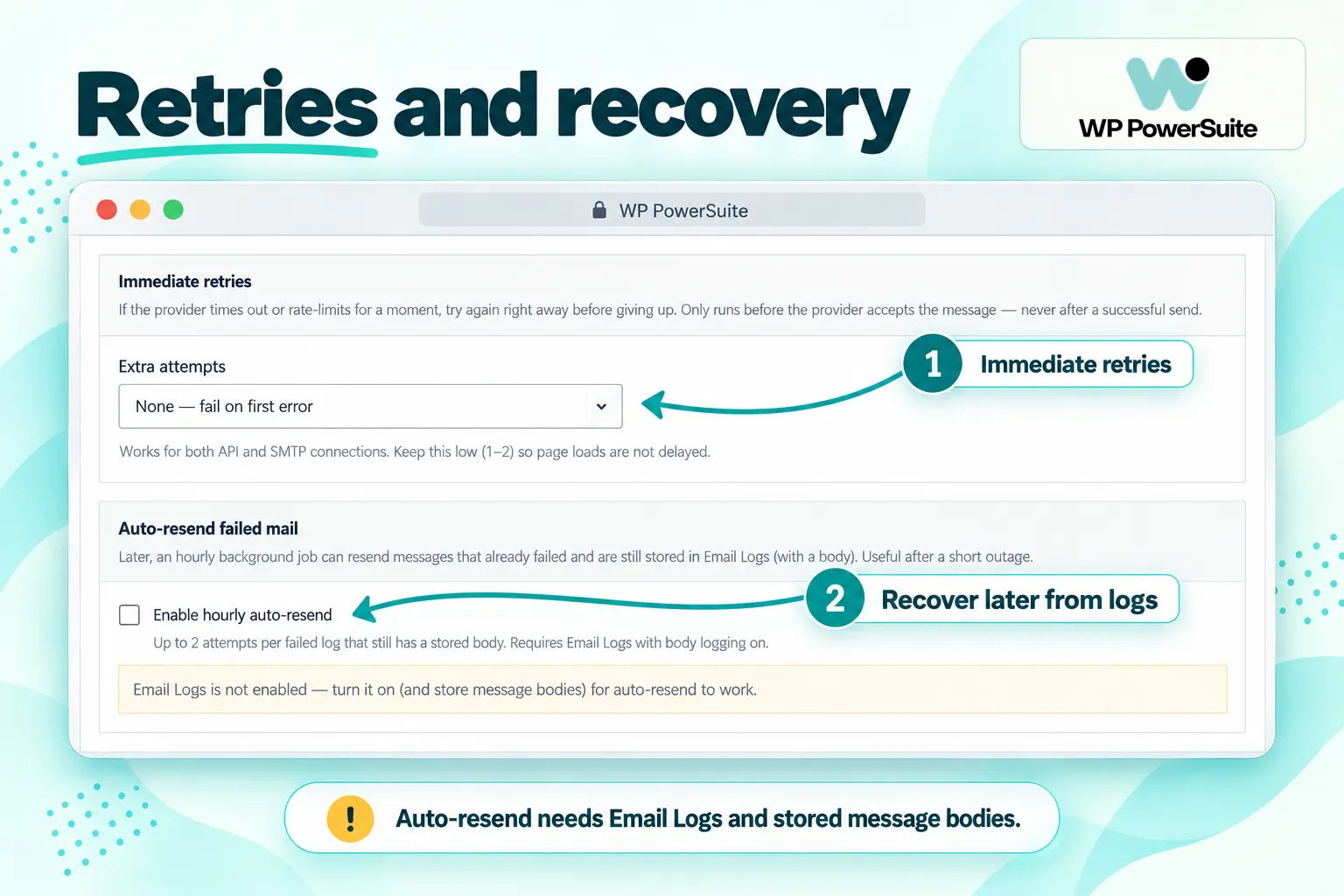
A secondary connection can provide a backup when the primary connection fails under eligible conditions. Email Delivery also exposes retry controls. These features help address some temporary sending failures, but they cannot repair an invalid recipient or force a receiving server to accept unwanted mail.
The reviewed implementation is careful about provider acceptance: a connection problem before acceptance is different from uncertainty after a provider may already have accepted the message. Retrying blindly can create duplicates. Configure fallback deliberately, verify the backup sender, and investigate persistent errors rather than assuming every failure should trigger another send.
There is also a separate automatic resend workflow for eligible failed log entries. That workflow depends on Email Logs being enabled and message bodies being stored. Immediate transport retries and later resending from logs should not be confused.
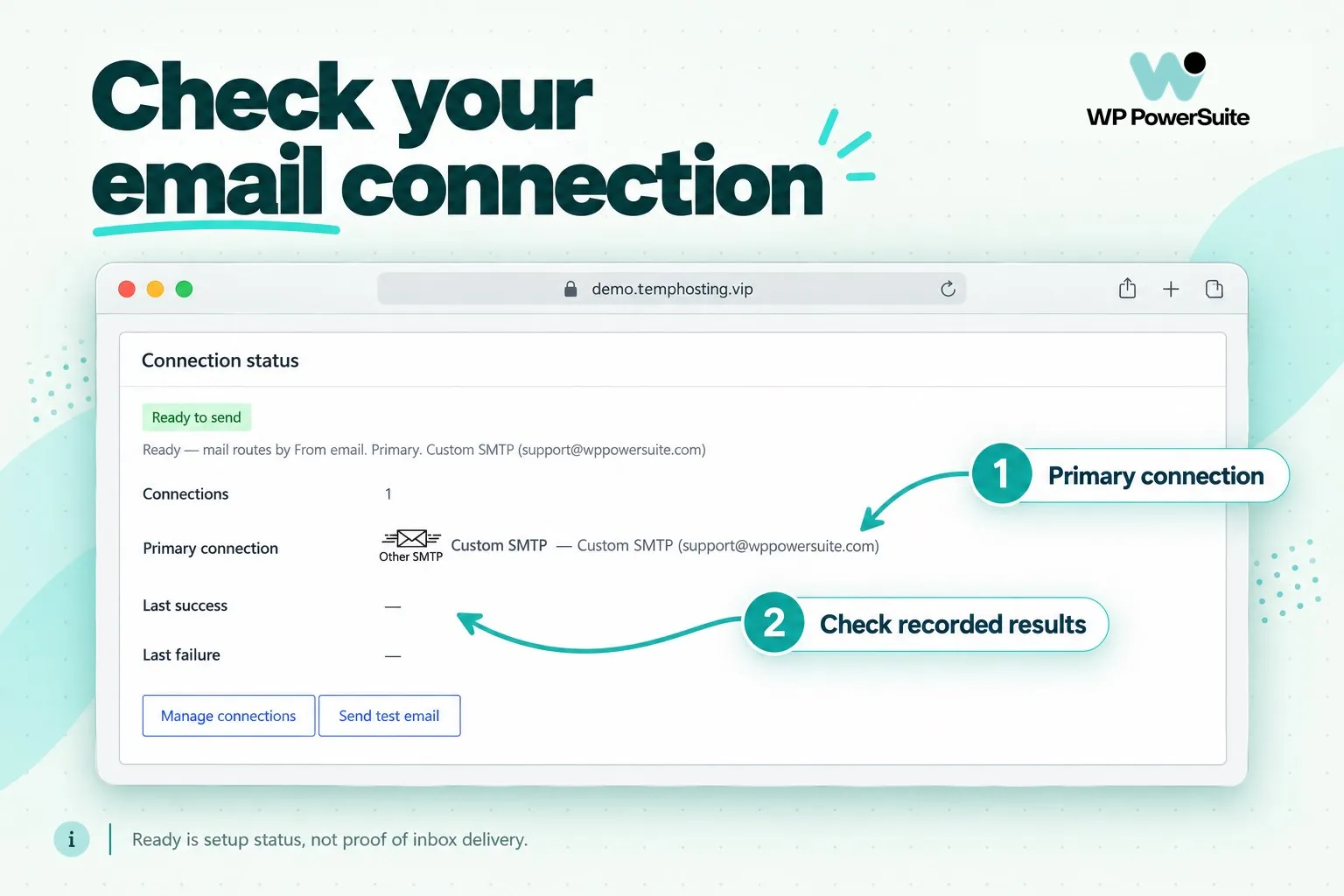
Test connections and inspect domain health
The module includes test-email and diagnostic tools, plus domain-health checks relating to SPF, DKIM and DMARC. These checks help identify configuration questions that deserve attention before you rely on a connection.
Domain authentication still belongs in your provider and DNS configuration. SPF identifies authorized senders; DKIM supports message authentication with a signature; DMARC adds alignment and policy. Follow your provider’s exact records and instructions. Google’s sender guidelines recommend authentication and explain how missing authentication can affect Gmail acceptance.
WP PowerSuite’s DKIM discovery checks common selectors for record presence. It is not a complete cryptographic validation of every message, and a custom selector may not appear in that check. Use an actual received message and your provider’s verification tools to complete the assessment.
Use simulation and alerts thoughtfully
Simulation mode prevents actual outbound delivery through the module’s handled mail path. It is useful when developing or checking workflows without contacting real recipients. Turn it off before running a live delivery test; otherwise, a simulated result can be mistaken for a functioning production connection.
Optional failure notifications can help administrators notice hard failures after retries or fallback. An alert sent by email still depends on a working email path, so it should complement operational monitoring rather than serve as the only indication that mail is broken.
Give important website messages a configured sending path. Explore Email Delivery and choose the SMTP or API connection that fits your site.
START WITH THE FREE MODULE
Make your next email setup easier to manage
Give your WordPress website a clear sending path. WP PowerSuite brings provider connections, sender routing and diagnostics into the toolkit you already use. Start with Email Delivery, then add monitoring when you need it.
Explore Email Delivery →Email Logs review: see what happened to WordPress emails
Sending settings answer “how does this site send?” Logs answer the support question that comes next: “what happened to this message?” WP PowerSuite Email Logs records mail handled through the WordPress mail workflow and exposes it in a searchable administration screen.
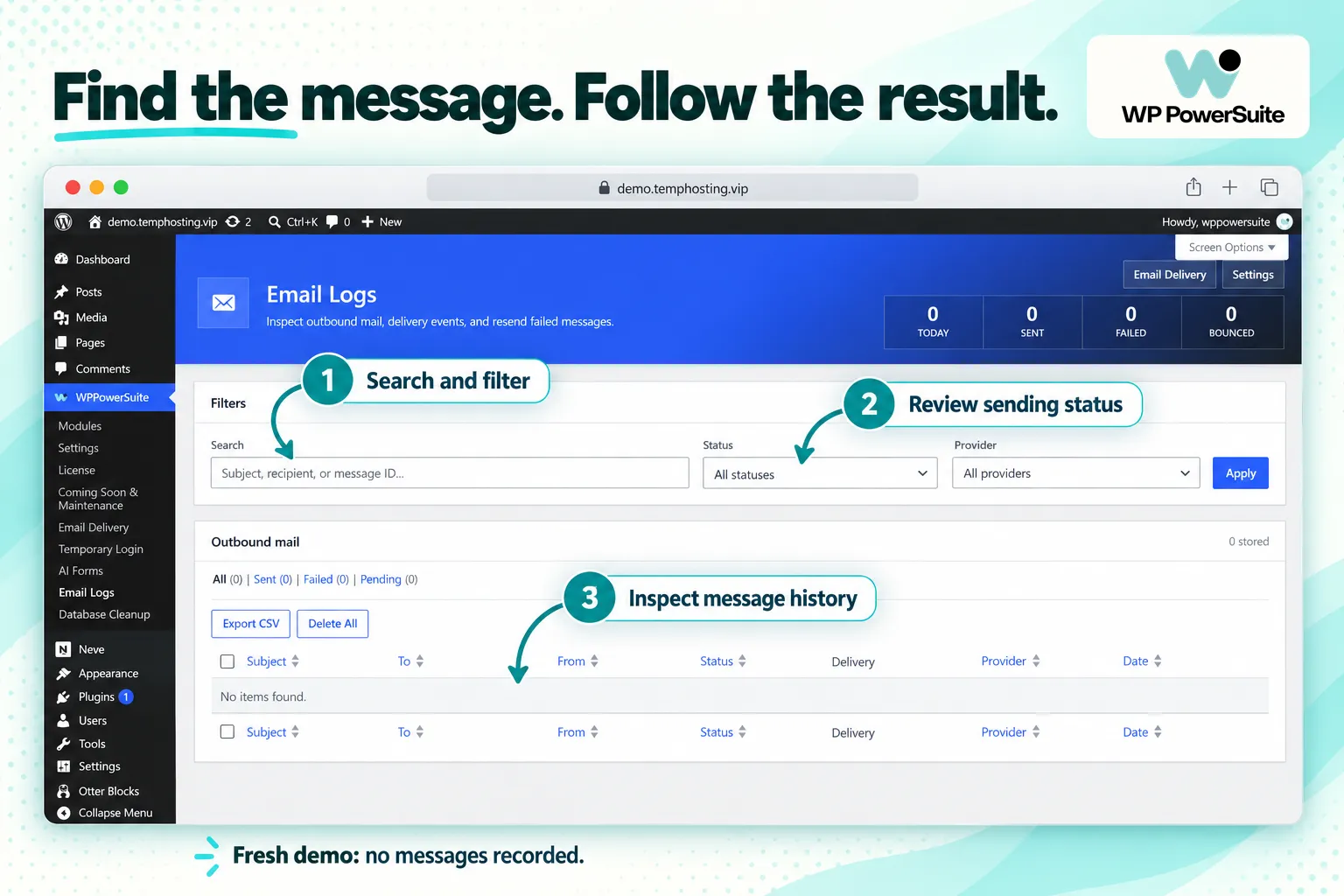
Find a message without guessing
Useful records include recipients, subjects, timestamps, sending status, provider information and errors. The interface supports searching and filtering, while detailed records can show connection information, provider message IDs, retry counts and fallback usage.
For example, if a customer reports a missing confirmation, search for their recipient address and the approximate time. A failed result points toward the recorded error and sending configuration. A sent result moves the investigation toward provider events and the recipient’s mailbox. No matching record suggests checking whether the application generated the email or used a separate sending integration.
Logging begins when the module is operating; it does not reconstruct messages sent before logging was enabled. Messages sent outside the WordPress mail path may also need to be investigated in the external application or provider.
Understand sending status versus delivery status
| Result | What it helps establish | Next step |
|---|---|---|
| Sent or accepted | The sending operation succeeded or the provider accepted the message | Check later delivery events and recipient details |
| Failed | The send operation encountered an error | Inspect credentials, connection settings and the recorded error |
| Delivered | A supported provider reported delivery | Investigate recipient filtering if the message is still missing |
| Bounced, rejected or complained | The provider reported a negative outcome or complaint | Review the provider event before deciding whether to retry |
| No delivery event | No matching later event is available in the log | Check provider support, webhook setup and provider records |
Provider delivery events require a supported integration and correctly configured webhooks. They are not automatically available for every custom SMTP server. Even a delivered event does not prove inbox placement, an open, or a click.
Preview and resend when stored content is available
Email Logs supports previewing stored HTML messages and manually resending eligible messages. These functions are useful after resolving a connection issue, but depend on the content that was actually retained.
Body storage is off by default in the reviewed implementation. Enable it deliberately when debugging or when your support workflow needs eligible resends. Turning it on today cannot recover the body of an older message that was never stored.
The module redacts recognized password-reset links, magic-login tokens and one-time codes. That is a useful protection, but redaction also means a stored authentication email may no longer be suitable for reuse. Generate a fresh reset or login email through the originating application instead of expecting an old log to preserve a usable token.
Manage retention and exports
The reviewed version offers retention choices of 7, 14, 30, 60 and 90 days, alongside a maximum-entry setting capped at 5,000 records. Both controls matter: reaching the entry limit can remove older records even when they fall inside the selected time window.
For a busy store, choose settings based on message volume and how far back customer enquiries usually go. Export relevant records before cleanup if you need them for an ongoing support case. CSV export provides a practical way to examine log metadata outside WordPress.
Retention also affects later reporting. A monthly report cannot summarize records that were already removed by a shorter retention window or a restrictive entry cap. Align reporting frequency with the data you actually keep.
Replace email troubleshooting guesswork with a searchable history. Review Email Logs or compare WP PowerSuite Pro plans for your site or client portfolio.
WP POWERSUITE PRO · EMAIL LOGS
Turn “Did it send?” into a useful investigation.
Keep a searchable history, inspect errors and review supported provider events. For busy stores and support teams, WP PowerSuite Pro puts the evidence closer to the conversation.
Explore WP PowerSuite Pro →Email Reports review: scheduled visibility beyond the inbox
Email Reports turns retained module data into recurring summaries. It is especially useful when the person maintaining a website is not the person logging into WordPress every day.
Schedule daily, weekly or monthly summaries
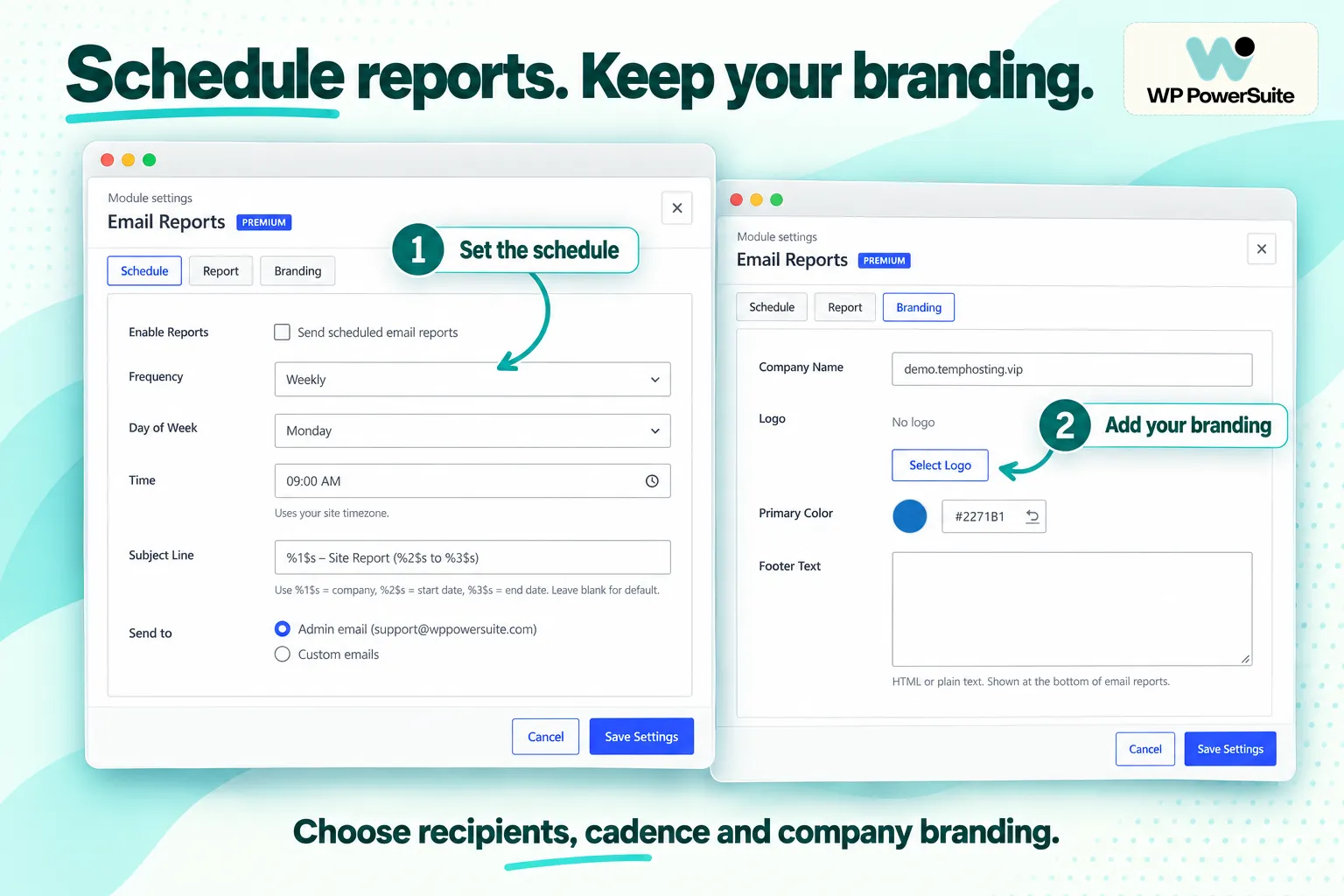
You can select a reporting frequency and configure scheduling options using the site’s timezone. Reports can go to the administrator email or custom recipients. A weekly digest is a sensible starting point for routine maintenance, while a busy operation may prefer a daily review.
Scheduled sending uses WordPress cron. If cron is delayed or misconfigured, report timing can be affected. Check that scheduled tasks run reliably on the actual hosting environment, especially for a low-traffic site.
Combine email statistics with website activity
The available report sections draw from supported WP PowerSuite modules. They include email activity from Email Logs, 404 information, login-security events and Activity Log information. Relevant modules must be enabled and, where required, licensed and collecting data.
This creates a useful maintenance routine: review recent mail failures, identify missing pages worth investigating, and check notable login or administrative activity from the same digest. Email Reports does not independently collect all these events; it summarizes the records supplied by the underlying modules.
Interpret the numbers in context. Delivered counts depend on available provider events. In the reviewed implementation, the report’s bounced total groups bounced, complained and rejected events. Use individual logs and provider details when you need to separate those outcomes.
Brand reports for clients and internal teams
Report settings include a company name, logo, primary color and footer message. You can also customize the subject and send a report on demand. These options help agencies present a consistent maintenance update without manually assembling the same information each week.
Choose recipients according to the information included. An internal troubleshooting digest may contain details that belong with the maintenance team, while a client-facing update should use sections that help the client understand the service.
Make monitoring part of your maintenance routine. Explore Email Reports to see how scheduled, branded summaries fit your workflow.
WP POWERSUITE PRO · EMAIL REPORTS
A clearer update. A more consistent client experience.
Bring selected site activity into a branded recurring summary. Set the cadence, choose the recipients and keep your team informed without collecting every update by hand.
Discover the Pro toolkit →How to set up WP PowerSuite email delivery, logs and reports
1. Choose one active sending configuration
Install and activate WP PowerSuite, then enable Email Delivery. Review any existing SMTP or mail-routing plugin before switching so you understand which component controls outgoing messages. Record your current configuration and plan a test before making the change on a production site.
2. Connect and verify your provider
Add the SMTP or supported provider connection, enter the required settings, and configure an approved sender address. Complete domain verification and DNS authentication with your provider. Select the default connection and add other sender-specific connections only when you need them.
Check SMTP settings before your first send
Your SMTP provider supplies the hostname, supported SMTP ports and encryption requirements. Copy those SMTP settings accurately. If a connection fails, confirm outbound network access with the host before repeatedly changing credentials. If a supported API connection is available, evaluate it as a separate email setup option.
3. Test real website workflows
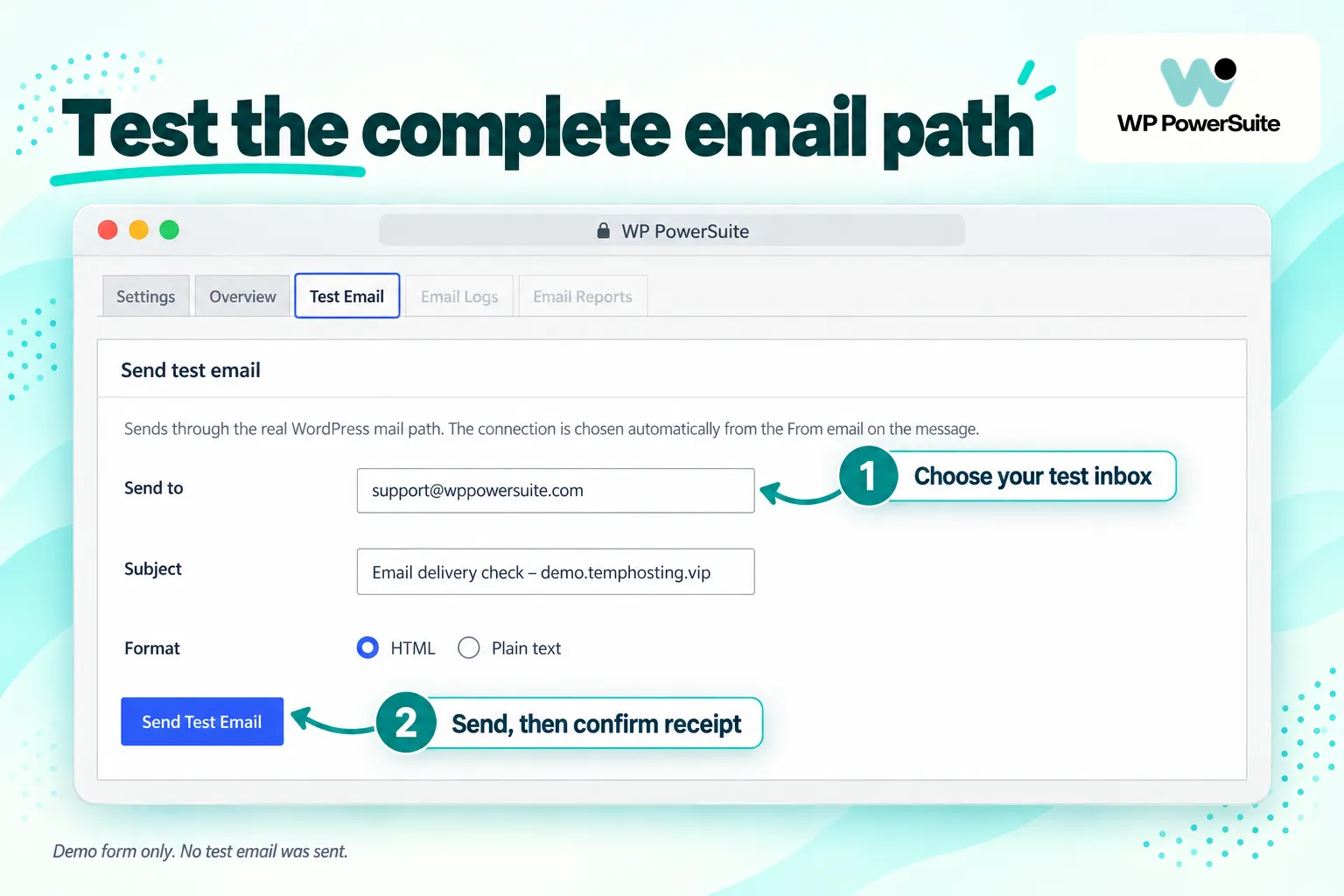
Send a test email, then exercise the actual workflows your business depends on: a form submission, a new-account message, a password reset or a test order where applicable. Check receipt as well as the sending result. A successful test message does not establish that every application uses the correct recipient and From address.
4. Enable Email Logs and set storage limits
Activate the Pro Email Logs module. Set retention and maximum entries, decide whether body storage is needed, and confirm that new test messages appear. If you want delivery events, configure the supported provider’s webhook and verify that an event updates the corresponding record.
5. Add fallback and recovery options
If your operations require a backup connection, configure and verify it separately. Enable retry or automatic resend options only after understanding their prerequisites. Check the logs after a controlled test so you can distinguish the primary connection, fallback use and any later resend.
6. Configure and review your report
Enable Email Reports, choose recipients and sections, set the schedule, and apply your branding. Send an on-demand report to check its content. Make sure the source modules are active and that retention is long enough for the reporting period you selected.
Best WordPress SMTP plugins: how WP PowerSuite compares
The best WordPress SMTP plugin for a particular site depends on the whole workflow, not simply the longest provider list. Compare the connections you need, logging costs, recovery tools, reporting scope and the other maintenance features your team already uses.
| Option | Reason to consider it | What to evaluate |
|---|---|---|
| WP PowerSuite | Email delivery within a broader modular WordPress toolkit | Free delivery versus Pro logs and reports; value of the other modules you need |
| WP Mail SMTP | A dedicated WordPress email product with free and paid offerings | Required mailer and the paid plan needed for email logging |
| FluentSMTP | A dedicated free SMTP option with logging and multiple connections | Whether its focused email workflow meets your requirements |
WP Mail SMTP’s support team identifies email logging as a paid feature. FluentSMTP advertises free email delivery, logging and multiple connections. These are credible alternatives; WP PowerSuite’s case is strongest when its wider toolkit and cross-module reporting reduce the number of separate tools you need to manage.
Plugin consolidation is an administrative advantage, not automatic proof of faster pages or better inbox placement. Those outcomes require measurements on your own site. Likewise, a free module does not make every external email provider free.
Other SMTP plugins for WordPress worth comparing
Easy WP SMTP offers a dedicated sending interface with custom SMTP and provider options; some integrations and advanced features depend on its paid offering. Post SMTP emphasizes connections, email logs, errors and failure alerts. Check the current plan requirements for the exact features you need.
The WP Mail SMTP by WPForms listing explains that WP Mail SMTP Pro adds logging and reporting. WP Mail SMTP Pro also offers backup connections and other advanced features. If you already use WP Mail SMTP, compare your existing setup before switching. Moving to WP PowerSuite makes most sense when its combined maintenance workflow offers additional value.
How to choose the best SMTP plugin for WordPress
Choosing an SMTP plugin for your WordPress site starts with a practical question: which messages must reach customers, and who investigates when they do not? WP PowerSuite connects those responsibilities across its delivery, logging and reporting modules.
Start with the messages sent from your WordPress website and the support questions your team receives. If you need basic SMTP, evaluate a free plugin and your preferred SMTP service first. If you need recovery, email log visibility and client summaries, compare those requirements separately. The best SMTP plugins are those that fit the work you actually do.
For WordPress users managing several site functions, WP PowerSuite offers a practical way to combine email sending with ongoing administration. For sending emails from WordPress alone, compare dedicated options on their own merits. Either way, improve your email deliverability through verified sender configuration, useful monitoring and prompt action on recurring failures.
Should you install WP Mail SMTP or choose WP PowerSuite?
If your only requirement is a dedicated mailer, the WP Mail SMTP plugin is one option to evaluate. WP Mail SMTP offers a free version, while upgrading to WP Mail SMTP Pro brings additional monitoring and recovery features. Check the current plan details rather than assuming all WP Mail SMTP Pro users have identical requirements or configurations.
If you already use WP Mail SMTP to send transactional messages, choosing the right SMTP plugin also means planning a migration that preserves the provider account, verified domain and intended sender identities. WP PowerSuite is a plugin that helps you send through a selected connection while giving you the option to bring logs, reports and other website tools into the same toolkit. Choose it when that broader workflow will help your team.
WP PowerSuite and WP Mail SMTP: compare the complete workflow
A dedicated SMTP plugin for WordPress can solve the connection requirement. WP PowerSuite goes further as a modular site toolkit: keep the sending connection in Email Delivery, investigate messages in Email Logs, and turn retained activity into Email Reports. Your team gets a clearer sequence from setup to support to routine oversight.
Strengths and limitations of the three-module approach
The strongest benefits are flexible sending connections, a shared support history, optional recovery tools, and reports that connect email activity with wider site maintenance. You can begin with Email Delivery and expand into Pro monitoring when the operational need justifies it.
The practical limitations are equally clear. Provider setup and DNS work remain necessary. Logs and reports require Pro. Delivery tracking depends on supported webhooks. Resending depends on stored content and eligibility. Retention affects the completeness of later investigations and reports. None of the modules guarantees delivery to the inbox.
For an agency already managing security, redirects and other site tasks in WP PowerSuite, the combined workflow is compelling. For someone who needs only a free SMTP connection and basic logging, a dedicated free option deserves comparison before purchasing a larger toolkit.
Frequently asked questions
Is WP PowerSuite Email Delivery free?
Yes. Email Delivery is marked as a free module in the reviewed version. Email Logs and Email Reports are Pro modules. External SMTP or API providers have their own account requirements, limits and pricing.
Can WP PowerSuite fix WordPress email delivery problems?
WordPress not sending emails is a symptom, not a diagnosis. Start with the message trigger, then inspect the connection and provider response.
It can address sending-configuration problems by connecting WordPress to an authenticated SMTP server or supported provider. The correct fix depends on the cause. A disabled form notification, incorrect recipient or provider restriction still needs to be corrected at its source.
Does it work with WooCommerce and contact form emails?
It handles messages that use the standard WordPress mail workflow, which makes it relevant to transactional and form notifications. Check the actual integration you use: a plugin that sends directly through its own external API may bypass that workflow.
Does “sent” mean the email reached the inbox?
No. A sent result describes the sending operation. A supported provider may later report delivery, rejection or another event. Even provider-reported delivery does not establish inbox placement or prove that a person read the message.
Can I resend an email from the logs?
You can resend eligible logged messages when their bodies were stored. Body logging is off by default. Sensitive authentication content may be redacted, so create fresh password-reset or login messages through the originating application.
Are Email Reports email marketing reports?
The module provides operational website summaries, including mail activity from Email Logs. It should not be confused with a newsletter platform’s campaign reports, subscriber management, conversion analytics or open-and-click tracking.
Can reports include 404 errors and security activity?
Yes, supported sections can summarize 404 data, login security and Activity Log events. The relevant source modules must be active and have data available. Pro source modules also require the appropriate license.
WP PowerSuite: SMTP for reliable email delivery
Reliable email operations involve more than choosing a mail server. You need a configured sending path, evidence when someone reports a problem, and a habit of reviewing what is happening.
WP PowerSuite’s Email Delivery, Email Logs and Email Reports modules support that progression. Start by configuring delivery, add logs for support visibility, and use reports to keep the right people informed.
Ready to bring email delivery and monitoring into your WordPress toolkit? Explore the free Email Delivery module, or choose a WP PowerSuite Pro plan for Email Logs, Email Reports and the wider suite of modules.